Inter Window Math
InterWindowMath
Topics:
PUBLISH
USE
CHAIN
SGCHAIN
TRIGGER
SCATTERWITH
"Inter-Window Math" allows a window to "Publish" its most recently entered sample
value for other windows to "Use" in their math formulas.
All Inter-Window communication will be done through the Formula field.
-
PUBLISH
This window is "publishing" its own identity and most recent sample values for
others to use.
The window publishing itself should contain the following in its Formula field:
#P00n where 00n identifies this window. The user should create this name so
that it is unique among all windows who wish to publish & share their samples.
You may use any 3 alphanumeric characters.
Before 04-19-2005, letters (if used) must be upper case.
Example: #P001 will cause this window’s identity and sample values to be "Published" so
others can use them. Now other windows can CHAIN to it, TRIGGER it, and/or USE its most
recent sample values.
Note: This feature requires version 10-03-2001 or newer.
-
USE
{00n} where 00n identifies the window whose sample value is to be "Used" in the calculation.
NOTE: The "value" to be used will be the raw value from that other window before any math functions
had been applied. Plan accordingly.
Example: *2.5, -{001} will multiply this window’s reading by 2.5 then subtract
the most recent sample value from Window 001 from the current window’s sample value and store
the results into the current window’s subgroup.
Note: The above feature requires version 10-03-2001 or newer.
You can also use individual readings from multi-reading functions.
For example: If Window 1 is using a Difference function and Window 2 is using an Average function,
then the formula +{001:F} -{002:L}
will add the FIRST reading of the series from Window 1's #D function, then it
will subtract the LAST reading of the series from Window 2's #A function.
Note: This :F :L feature requires version 02-15-2005 or newer.
You can also square Used values, like this: +{001}^2 or +[Field Name]^2
Note: The above feature requires version 01-30-2007 or newer.
If you specify the word, AutoSynch, in your Formula field,
it causes "Used" samples to be taken from corresponding
samples in another window's subgroup.
For example, if you have:
+{001} AutoSynch
and you are typing or gaging in the value for the 3rd sample of your subgroup,
it will add in the value of the 3rd sample from Window 001,
rather than the most recent sample from Window 001.
Note: The above AutoSynch feature requires version 08-22-2007 or newer.
You can also use the "Most Recent Sample" (or the 2nd Most Recent Sample) that has been entered
regardless of which window it went into.
To do this, specify +{MRS} in the formula line (or +{MR2}). This is very useful when TRIGGER is used,
so that the Triggered window can use the sample value from whatever window triggered it.
This is a MUST if you want your Triggered window to use values from 3 different windows,
such a when calculating averages or differences of multiple readings using a formula like:
#P004 +{MRS} #D03
Note: This now precludes users from being able to Publish a window
with the names of #PMRS or #PMR2 as "MRS" and "MR2" are now "reserved words".
Note: The above feature {MRS} requires version 04-15-2008 or newer.
Note: The above feature {MR2} requires version 10-29-2009 or newer.
-
CHAIN
Advance the window highlight to another window after a gage sample comes in.
CHAIN works with either a gage reading coming in or the [SAVE] or [SAVE->] button being clicked.
This is especially useful when HotWindow is turned on.
It allows you to program a "sequence" of windows to which entries will be made.
#CHAIN00n where 00n identifies the window to which focus will be passed.
Example: #P001, #CHAIN002 says, "I am window 001. Advance to window 002."
Note: This feature requires version 12-29-2003 or newer.
-
SGCHAIN
Same as CHAIN, except the chaining will not occur until the subgroup is full.
Note: This feature requires version 03-28-2006 or newer.
Note: When Chaining is about to occur, you can have SPC Express pause for a short time
so the operator can see the Subgroup Entry Screen before it loses focus.
Set Extra Option ChainDelay=050 (in hundredths of a second).
This feature requires version 05-17-2011 or newer.
-
TRIGGER
This sends a "phantom gage reading" of zero to another window.
The triggering occurs after a sample reading is entered (either from the keyboard or gage).
That triggered window can then get data from other window(s) and apply math formulas.
Example: #P001 #TRIGGER004 says, "I am window 001. Tell window 004 to start processing as if
it just received a gage reading of zero."
This is great for doing differences and ratios.
It works for both keyboard and gage entries.
IMPORTANT! Be sure you check "Apply to Gage" or "Apply to Keyboard" in order for the TRIGGER to get executed.
Example: Window 001 reads a TARE WEIGHT.
Window 002 reads a GROSS WEIGHT and triggers Window 3, using #TRIGGER003 in the Formula line.
Window 003 uses the Formula +{002} -{001} to compute the NET WEIGHT.
Window 003 could even trigger another window to pass along
its results for further processing and charting.
Note: This feature requires version 01-06-2005 or newer.
An enhanced version of #TRIGGER was added 08-10-2005. It's called #TRIGGER: (Trigger colon).
The ID's that follow #TRIGGER: are the windows that will get triggered as each sample comes in.
EACH SAMPLE CAN TRIGGER A DIFFERENT WINDOW! For Example, if your subgroup size is 3, you could use
#TRIGGER:Len,Dia,OD3
Then, after sample 1 comes in, the window called "Len" is triggered.
After sample 2 comes in, the window called "Dia" is triggered, etc.
If, for some reason, you only want sample 3 to trigger a window, just use "xxx" (or any unused window name),
like this: #TRIGGER:xxx,xxx,OD3
Note: "xxx" is recommended because this will prevent a
"no trigger window found" warning message.
As of January 27, 2009, you can specify Multiple Triggers. For example: #P001 #TRIGGER002 #TRIGGER003
-
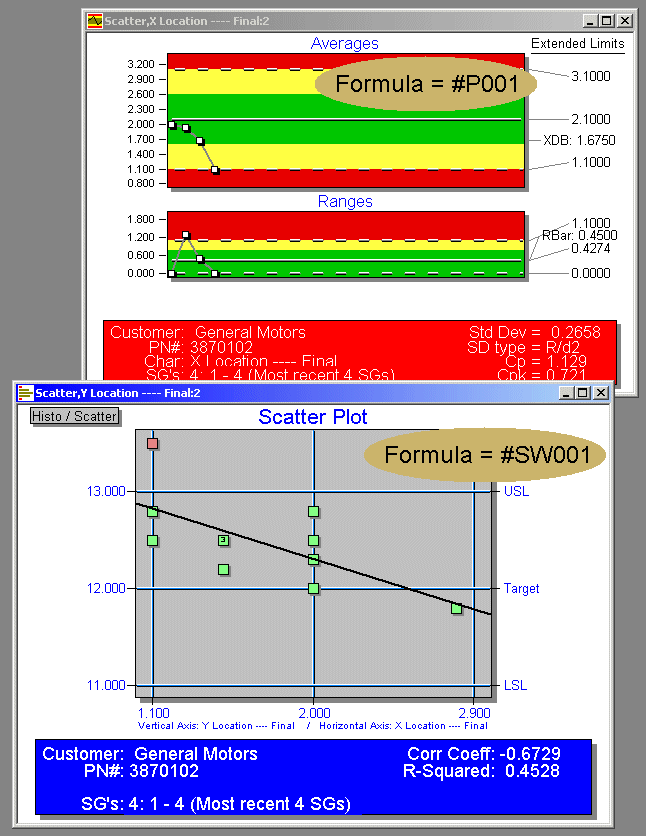
SCATTER WITH
This is used to help generate a "Scatter Plot".
It will use the values in this window with the values in the "Scatter With" window.
For example, you could have a Diameter window which has a formula:
#P00D
and a Length window which has a formula:
#P00L, #SW00D
This will cause a Scatter Plot be be generated in the Length window.
It will plot the Diameters and the Lengths and pairs of values on a Scatter Plot.
Click here for a Sample Screen
Go Back